Posts

Showing posts with the label Enterprise Portal

How to Fix EP in Microsoft Demo VM environments

It is quite often that you will run into issues trying to open Enterprise portal (EP) in Microsoft released DEMO VM environments. This is basically because of the change in IP addresses and also depends on which host the VM is installed (Hyper-V or Oracle Box or VMWare). The same happened to me and I have found posts by several helpful AX Tech people. Below are two such related links.  Here's how you can fix it. (intranet.contoso.com) (VMWare player):  Link EP is not working In AX 2012 R3 VM: Link How to use Set IP Utility: Link  (Needs PartnerSource access) However, My personal suggestion to you is to reinstall EP after you have setup your VM in order to have better results. Of course, this requires that you have the Setup file for the respective AX Version. Steps to follow: Download/collect setup file of the necessary AX Version (like AX 2012 R2 or AX 2012 R3..) Copy the setup files to the VM (or) use a Shared folder from your host Run as Administrato...
Walkthrough: Adding a Page to Navigation [AX 2012]

Image
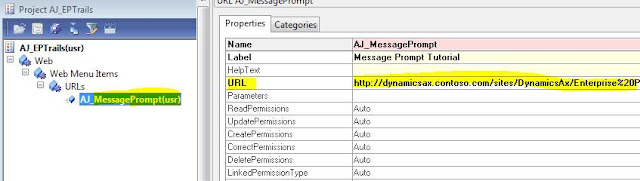
When you create a page in Enterprise Portal, you will add it to the navigation to enable users to access it. This walkthrough demonstrates how to add the Tutorial_MessagePrompt page to the Quick Launch navigation for the Sales module site in Enterprise Portal. It illustrates the following tasks: 1.       Creating a Web Menu Item 2.      Modifying the Quick Launch Menu 3.      Viewing the Page in Enterprise Portal Prerequisites to complete this walkthrough: 1.       Microsoft Dynamics AX 2.      Enterprise Portal #1: Creating a Web Menu Item A web menu item points to a specific page in Enterprise Portal. You must create a web menu item for each page that you will be adding to the navigation. To create a web menu item: 1.       In the AOT, expand the Web node, and then expand the Web Menu Items node. 2.      Right-c...

Walkthrough: Adding a Field to a User Control [AX 2012]

Image
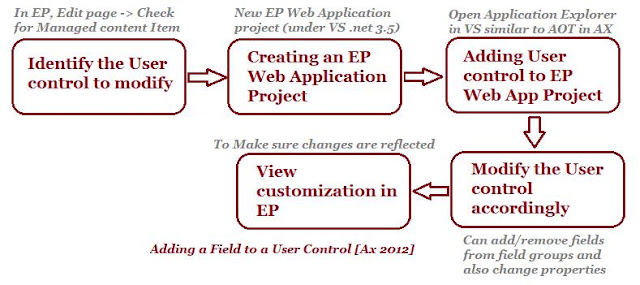
In this example, the customer page in EP displays detailed information about a customer. The User Control displayed in a User Control web part is used to display the data on the page and the AxForm is the main component of the User Control used. A common customization is adding/changing the fields that are displayed in an entity overview page. This walkthrough demonstrates how to add a field to the first group that appears on the View customer entity overview page. The below figure illustrates the tasks be performed: Prerequisites: Basic prerequisites to be checked and available before proceeding for the walkthrough are: 1. Microsoft Dynamics AX 2. Enterprise portal 3. Visual Studio 2010 4. Visual Studio Tools installed (Ax Installation) 5. EP Administrator rights #1: Determining the User Control to Modify Before you can modify the fields displayed on the View customer page, you must determine which User Control is being used for that page. To determine the U...

How to solve Error: Cannot create file mapping in Ax2012 Enterprise Portal

Image
Sometimes a perfectly fine, up and running Enterprise portal (Role center) will stop working and throw the below error. Error Message: "An unhandled error has occurred. To view details about this error, enable debugging in the web.config file or view the Windows event logs. Go back to site." You will generally get an error message like "Unhandled exception has occurred" or "An error has occurred. Contact your administrator for further assistance" on the Enterprise portal site or on the Ax Thick client (for role centers). But to have the understanding of the actual error, look into the Event Viewer (eventvwr). Solution: The solution that worked for me is quite simple to implement and you can give it a try even though you have some other issue related to Enterprise portal. Go to System administration > Setup > Enterprise portal > Deployments In the opened dialog, verify if the Deployment target is pointed to the correct folder (typ...

Enable users to access Enterprise Portal [AX 2012]

Image
Before you grant users access to Enterprise Portal, you must complete the following tasks: 1.       Verify that you have the appropriate permissions to install and configure Enterprise Portal. 2.      Verify that you are listed as a site administrator for Enterprise Portal in SharePoint. 3.      Install Enterprise Portal. 4.      Deploy Enterprise Portal. 5.      Configure security for Enterprise Portal. Adding users to SharePoint: You must add users or groups to Microsoft SharePoint 2010 products before users can access Enterprise Portal or view content in Role Centers. 1.       Open the Enterprise Portal site in a Web browser. By default, the URL is http:// server_name /sites/DynamicsAX.   2.      On the menu bar, click Site Actions > Site Permissions. 3.      Click Grant Permi...

Missing Expense reports in Enterprise portal [Ax2012]

Image
Pretty basic issue, but troubles a lot if you don’t know where to look. New Ax users might not find the expense reports in enterprise portal even after successful installation. You might find you Enterprise portal page to look something like this: This seems to be the default behaviour in Enterprise portal. It is strange but that’s the way it is. Please follow the below steps to navigate to Expenses : Click Site Actions > View All Site Content Then click link “Employee services” under Sites and Workspaces And in there, you will find links for Expenses. Hope this helps.